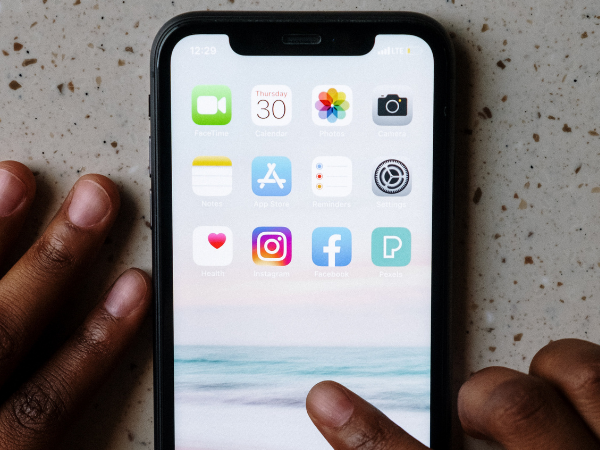
Do you have apps you never use, and you need to get rid of? Do you need to clear up space in your iPhone? Then it is time to delete, offload or hide apps on your Apple device.
Regardless of the your phone is currently running on, you can uninstall or delete any app you no longer need or want to use.
If you have an iPhone running on iOS 14, there’s an extra option that lets you hide apps from your Home Screen while still keeping them within your app library. If your iPhone is running on iOS 11 or later, you can delete or offload an app; this deletes the app but keeps the data.
What is the best way to delete Apps on an iPhone?
TECHNOLOGY
TECHNOLOGY
TECHNOLOGY
There are several different ways to remove or delete apps from your iPhone, and they all depend on the particular kind of iOS your iPhone is currently on. You can offload an app if you want to save its settings and data for later re-installation. You can also delete apps on the iPhone by deleting them totally and erasing all saved data.
How to delete apps on iPhone
If you are uncertain about your phone’s iOS version, open the Settings app on your device, tap on “General,” then tap “About.” The current iOS version your iPhone is on will typically be listed right next to “Software Version.”