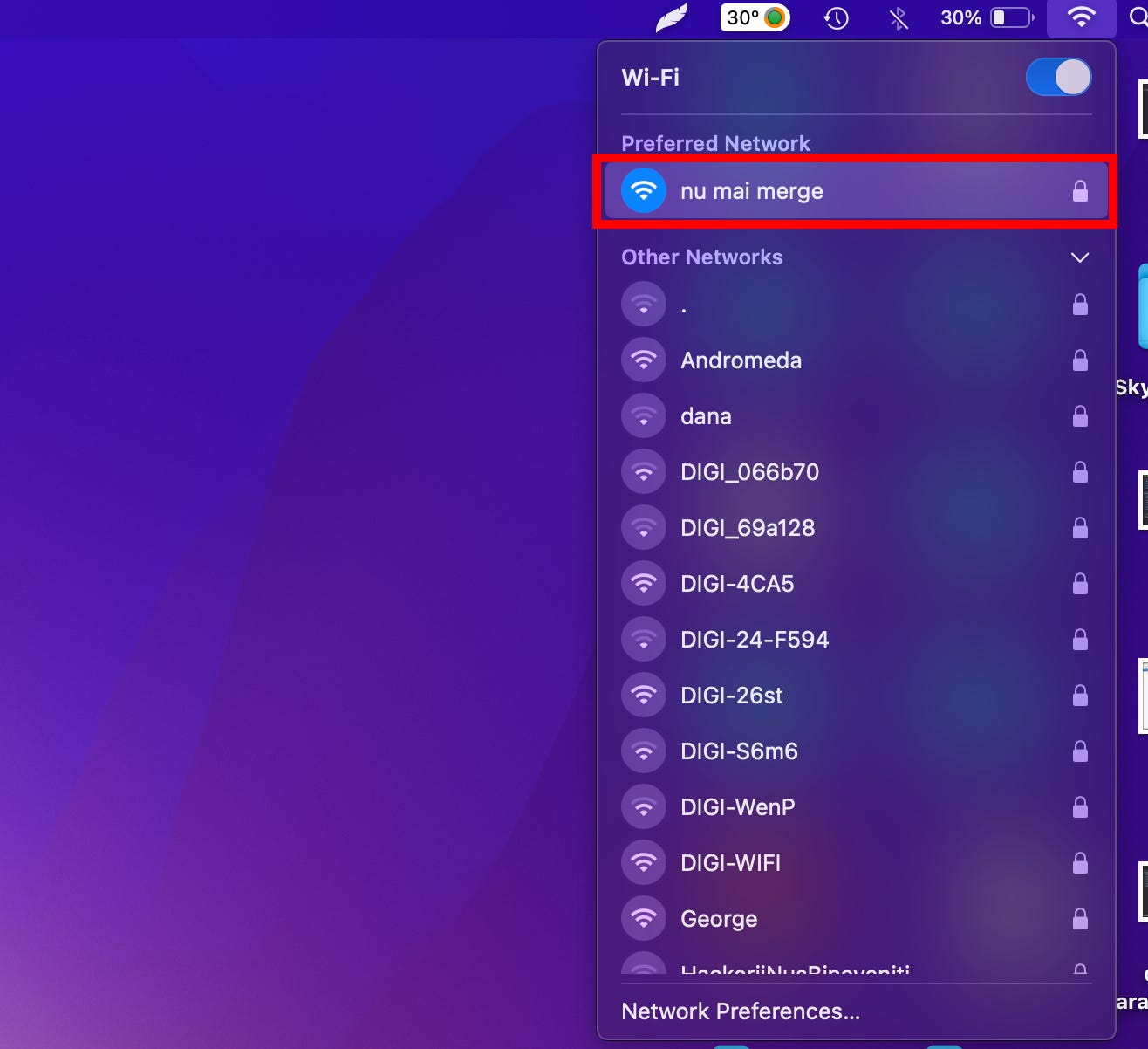
- If your Mac won’t connect to the Wi-Fi, first verify that you’re using the right Wi-Fi connection.
- You can also try checking Wireless Diagnostics, available updates, physical hardware, and DNS settings.
- If those don’t work, resetting the PRAM and SMC or restarting your Mac might do the trick.
There are a lot of variables that influence why your Wi-Fi connection might drop out, from the hardware in your home or computer, to software on your computer, to issues totally out of your hands originating from your service provider.
Here’s what you can do to narrow down the list of possible culprits and get back up and running again.
1. Verify that the Wi-Fi connection is the one you wantTurn your Wi-Fi off and on and make sure you’re attempting to connect to the right network.
Stefan Ionescu
Macs sometimes skip from your expected Wi-Fi connection to a different network. If there are other “open” networks available that don’t actually provide an internet connection, that could be the source of your problem right there.
If you see the Wi-Fi symbol with the exclamation point in the middle, this means you are connected to your wireless router but you’re not getting the proper DNS handshake from your internet provider.
Quick tip: Now’s also a good time to switch between your regular and 5Ghz network if you have both set up. Sometimes a simple switch from one to the other will restore your Wi-Fi connection.
Finally, before escalating to other tactics, try forgetting the WiFi connection and then connecting to it again and see if that clears things up.
2. Check Wireless Diagnostics Open Wireless Diagnostics.
Stefan Ionescu
Wireless Diagnostics is Mac OS X’s built-in Wi-Fi troubleshooting tool. I’ve personally never had it solve a single Wi-Fi problem, but hey – maybe it will work for you – and Apple has improved the tool over the years.
You can access Wireless Diagnostics by searching for it in the Spotlight search function (as illustrated above), or by doing the following:
1. Hold down your Option key and click the wireless icon (the Wi-Fi symbol) in the status menu at the top of your screen.
2. Select Open Wireless Diagnostics from the dropdown menu.
3. Click on Continue for your Mac to run the diagnostics on your Wi-Fi connection.
You’ll be presented with a detailed look at your network options and the computer will run you through a series of steps to try to identify and fix your Wi-Fi problems.
Quick tip: If Wireless Diagnostics turns up empty, now’s a good time to set up Wireless Monitoring. When the tool finishes, select Monitor my Wi-Fi connection in the pop-up that shows, and then click on Continue. This will produce a log that could help a technician understand your Wi-Fi problems.
3. Check your System Updates Check your system for updates.
Stefan Ionescu
Are there pending system updates you haven’t installed yet? Try upgrading to the latest version of the operating system if the Wi-Fi is giving you fits. There could be bug fixes in there that will clear up your problem.
4. Check your physical hardware Checking your router.
Casezy idea/Shutterstock
Sometimes, turning the router off and turning it back on again can fix the issue.
Unplug your cable modem and wireless router (if they’re not an all-in-one unit), wait 30 seconds, then plug your cable modem back in and then your wireless router.
If that doesn’t work, you can try updating your router’s firmware. While a few devices do this automatically, if yours doesn’t, you can update it using its accompanying mobile app (if available) or admin panel in a web browser. If that fixes the issue, make sure you keep the firmware updated at all times to prevent problems in the future.
Note: If your router is very old, you might not find any updates available because the manufacturer has stopped providing them for that model. Consider upgrading the device to a newer one.
5. Change your DNS settings You can try adding a new Domain Name System (DNS) to your network settings.
Stefan Ionescu
Now we’re getting a little more technical.
It’s possible that your Wi-Fi is working fine but you aren’t getting internet access because your ISP’s Domain Name Server (DNS) isn’t working properly.
In cases like this, try using a free, public DNS instead. Google has a good one.
1. Open Network Preferences from the Wi-Fi icon in the top menu bar or from System Preferences.
2. Click the Advanced button at the bottom.
3. Then select the DNS tab from the menu option.
4. Hit the plus icon and add Google DNS addresses, 8.8.8.8 or 8.8.4.4.
5. Click OK and try browsing the internet again.
6. Check VPN and security software
Sometimes, you might have a VPN installed to protect your network by, for example, hiding your IP address. However, it just might be what’s interfering with your internet connection.
Check the VPN or any other security-related software to ensure that they aren’t the source of the network problems by disabling them and seeing if the issue persists.
7. Reset NVRAM/PRAM and the SMC Resetting the NVRAM/PRAM and SMC might help.
Hollis Johnson/Business Insider
NVRAM (Non-Volatile Random-Access-Memory) and PRAM (Parameter Random-Access-Memory) are two internal Mac components that store the memory even when the device is turned off.
This is used in places like your computer’s internal clock and resetting the PRAM/NVRAM can be an effective way to clear out the virtual cobwebs and get your Wi-Fi up and running again.
1. For the PRAM/NVRAM, start the computer and after you hear the startup chime, hold Shift, Control, and Option keys while you press the power button on your Macbook for at least 10 seconds.
2. Immediately after you hear the startup chime, press and hold the Command + Option + P + R keys to reset the PRAM.
Quick tip: On older Macs, release these keys after you hear the startup sound a second time — on a newer Mac, release the keys after the Apple logo appears and disappears twice.
You should also reset the SMC (System Management Controller) while you’re there for the same reason.To reset the SMC, it depends on whether you have a Mac model with a removable battery or not.
If you happen to have a removable battery, all you have to do is remove it and hold down the power button for five seconds.
On all other Macs, press and hold Shift + Control + Option and the power button for 10 seconds.
8. Restart your Mac Restarting your Mac can help.
Apple
When all else fails, restart your Mac computer. It may be the oldest trick in the book but it can work.
If it doesn’t – and you’ve exhausted all your other options – this may be a clue that your connection problems are hardware related, either on your computer or at the router.
Read the original article on Business Insider