Finance Inquirer
No Result
View All Result
Sunday, November 8, 2026
  • Login
  • Home
  • Business
  • Technology
  • Finance
  • Stock Market
Subscribe
Finance Inquirer
  • Home
  • Business
  • Technology
  • Finance
  • Stock Market
No Result
View All Result
Finance Inquirer
No Result
View All Result
Home Technology

How to set up a Disney+ ‘GroupWatch’ party

Tom Hagler by Tom Hagler
25.12.2021
in Technology
How to set up a Disney+ ‘GroupWatch’ party
152
SHARES
1.9k
VIEWS
Share on FacebookShare on Twitter

Disney+’s awesome “GroupWatch” functionality is a co-viewing feature that lets you connect with friends and families to watch movies and shows from the entire Disney+ library, even when apart. GroupWatch lets up to seven people watch together in synced playback that you can access via web, on Disney+’s mobile platforms, on connected TV devices, and through smart TVs.

Who can access Disney+ GroupWatch parties?

Disney+ subscription promotion screen featuring movies like "Frozen II," "Loki," and "The Mandalorian." Credit: Disney

In order to access the Disney+ GroupWatch functionality, you need to be a subscriber, both to start a GroupWatch party and to join one via an invite. Disney+ currently costs $7.99 a month or $79.99 per year in the U.S. A subscription gives you ad-free access to all of the service’s streaming titles as well as the GroupWatch functionality.

Disney+ GroupWatch participants must all be in the same country. Kid’s profiles cannot participate in a GroupWatch.

What devices support Disney+ GroupWatch parties? 

Icon for TV, Computer, Mobile and Tablet, and Game Consoles, along with lists of devices in each category Disney+ can be streamed on. Credit: Disney

With the exception of PS4 and selected Roku models, Disney+ GroupWatch is available across a wide range of devices and platforms, including mobile devices, web browsers, game consoles, set-top boxes, and smart TVs (click here for a full list of Disney+ supported devices).

How to begin a Disney+ GroupWatch viewing party 

As above, as long as you are a Disney+ subscriber you can get your viewing party started by selecting a title, then tapping or clicking on the GroupWatch icon found on the “Details” page of series and movies. This GroupWatch icon is represented by three figures in a circle. 

"The Mandalorian" promo image above GroupWatch icon to click Credit: Disney

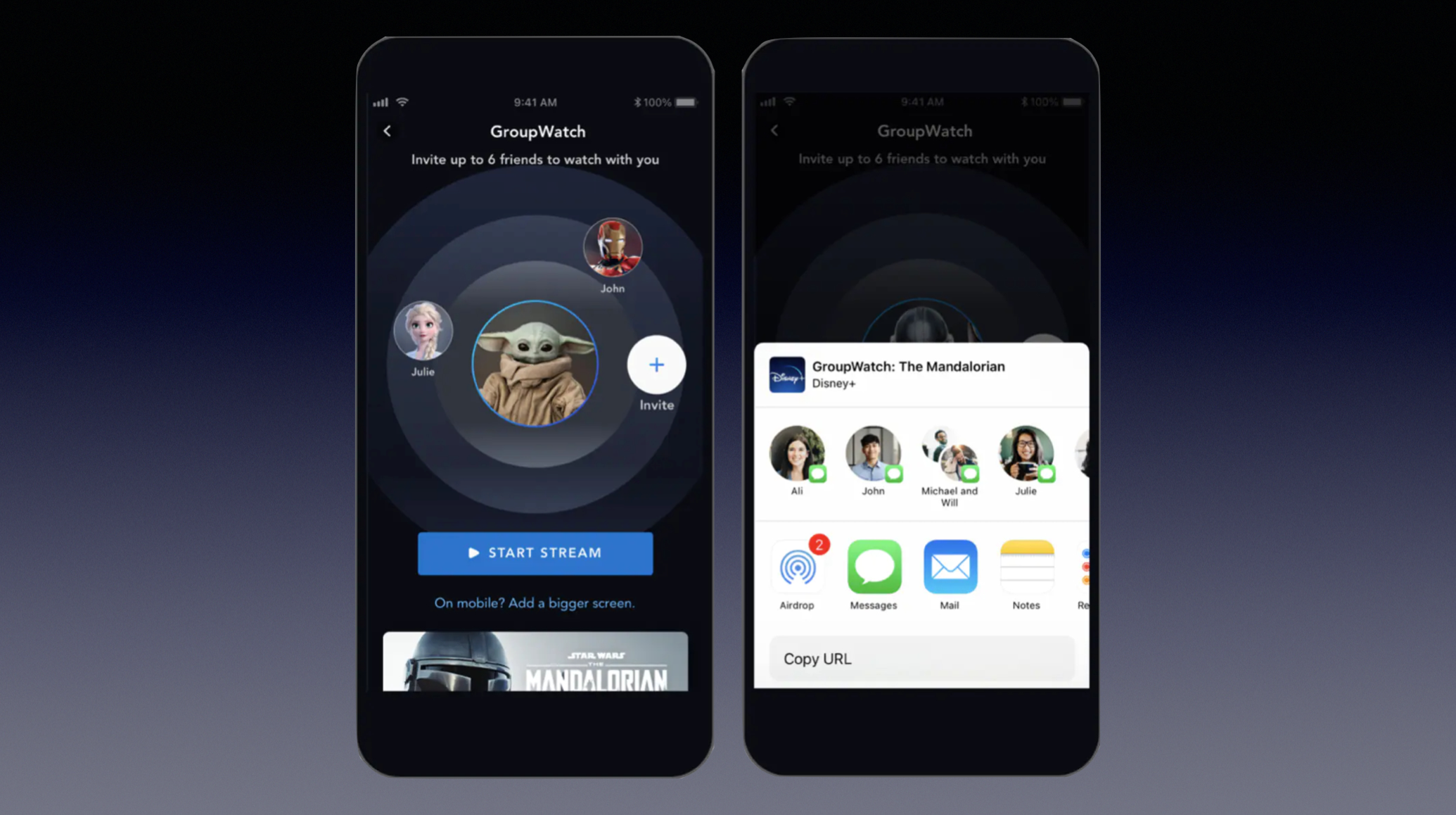
This will generate a URL link to invite up to six other people (who, again, also have to be Disney+ subscribers) to watch along. You can send people the link via text or email, or, if you’re on a mobile platform, you can share via social media. The original invitations must be generated from a mobile device, such as a phone or a tablet, or from the web. 

Groupwatch screens: On the left, screen showing you and those watching with you; on the right, screen showing the contacts you've invited Credit: Disney

Once generated, hit “Start Stream,” and you and the invitees can then watch from mobile devices, connected TV devices, or a smart TV. Don’t forget the popcorn! 

During the GroupWatch, anyone can pause, fast forward, or rewind. If you haven’t hit your invite limit, the person who initiated the GroupWatch session can invite more people at any point by coming out of the player and tapping the plus-sign invite icon. 

How to activate an invite to a Disney+ GroupWatch viewing party 

You can accept a Disney+ GoupWatch invite through the Disney+ app or on DisneyPlus.com by searching for the title of the content. On the title page, select the GroupWatch icon. Select “Join Stream” and follow the prompts. 

Once you’ve accepted the invite, you can switch to a connected TV to watch on a larger screen by opening Disney+ using the profile that accepted the link and selecting “Join Stream.” 

How to react with emoticons during a Disney+ GroupWatch session

While watching, you and the other viewers can communicate in real time with six different emoji — “like,” “funny,” “sad,” “angry,” “scared,” and “surprised” — by selecting them in the Disney+ app or on the website. 

On the left, image of "The Mandalorian" promo above the six emoji you can use; on the right, still from the movie and a face with hearts emoji. Credit: Disney

To send an emoticon for your fellow viewers to see from a mobile device, tap the screen, then tap the smiley face icon to see your six options. On desktop, put your cursor over the smiley face icon and then click on the emoticon you want to send. 

Using either method, your chosen emoticon will appear at the bottom of everyone’s screen with your Disney+ profile name next to it. 

How to end your participation in a Disney+ GroupWatch viewing party 

If you need to stop watching before the title has ended, simply select “Leave GroupWatch.” Everyone else’s stream will continue without you until the title ends or everyone clicks that button.

tech?d=yIl2AUoC8zA tech?d=7Q72WNTAKBA tech?i=dnKK3t8j2ms:MT8eLvEVPpE:V_sGLiPBp tech?d=qj6IDK7rITs tech?i=dnKK3t8j2ms:MT8eLvEVPpE:gIN9vFwOq

  • Trending
  • Comments
  • Latest
P2Pro: profitable changes are coming!

P2Pro: profitable changes are coming!

13.09.2022
Saving and investing the two keys to your future retirement

Saving and investing the two keys to your future retirement

21.06.2022
The Dow Jones slept through the whole trade despite positive data from the labor market. Nasdaq had its best streak of gains this year

The Dow Jones slept through the whole trade despite positive data from the labor market. Nasdaq had its best streak of gains this year

01.09.2022
The ranking of countries in terms of the coverage of children with preschool education has been compiled

The ranking of countries in terms of the coverage of children with preschool education has been compiled

03.11.2022
Take the best photos of your life with the new vivo Y76 5G now available

Take the best photos of your life with the new vivo Y76 5G now available

Complete your Christmas shopping with up to 75% off on devices at vivo’s Big Christmas Sale on Shopee

Complete your Christmas shopping with up to 75% off on devices at vivo’s Big Christmas Sale on Shopee

AirPods 3 vs AirPods 2 – What’s the Difference?

AirPods 3 vs AirPods 2 – What’s the Difference?

Want to be a content creator? Here are 5 valuable tips from today’s top Pinoy online celebrities

Want to be a content creator? Here are 5 valuable tips from today’s top Pinoy online celebrities

European Technical Expands AMC Services Across Dubai Amid Rising Demand

04.11.2026
Occams Advisory Earns 9th Inc. 5000 Honor, Soars to No. 798 in 2025

Occams Advisory Earns 9th Inc. 5000 Honor, Soars to No. 798 in 2025

12.09.2025

A Family debt of €20 million marks a new chapter in Dasha Ozden’s life

04.09.2025

SnapInspect Shares Five Key Factors to Consider When Choosing Property Inspection Software

25.08.2025

Recent News

European Technical Expands AMC Services Across Dubai Amid Rising Demand

04.11.2026
Occams Advisory Earns 9th Inc. 5000 Honor, Soars to No. 798 in 2025

Occams Advisory Earns 9th Inc. 5000 Honor, Soars to No. 798 in 2025

12.09.2025

Categories

  • Business
  • Finance
  • News
  • Stock Market
  • Technology
  • Без рубрики

Site Navigation

  • Home
  • Contact Us
Finance Inquirer

We offer multimedia features, easy channel navigation, strong social media presence and numerous engagement platforms that allow the readers to experience content anytime, anywhere, always.

No Result
View All Result
  • Home
  • Business
  • Technology
  • Finance
  • Stock Market

© 2021 financeinquirer.com

Welcome Back!

Login to your account below

Forgotten Password?

Retrieve your password

Please enter your username or email address to reset your password.

Log In